

Connecting to the redBlocks Simulator
- Start the redBlocks Simulator and load the simulator project (Menu: Project -> Open) for the Example VendingMachine (located in /RBDK/Workspace/VendingMachine/sim/VendingMachine.rbp).
- Start the simulation in the redBlocks Simulator (Menu: Simulation -> Start simulation)
- The redBlocks Simulator now waits for the application to be started from within the redBlocks Workbench.

- At the bottom of the redBlocks Simulator window, a user console for all the project's python scripts should open up. No error messages should be displayed there.
- Change to the redBlocks Workbench and start the application (make sure the project VendingMachine is selected in the project explorer).
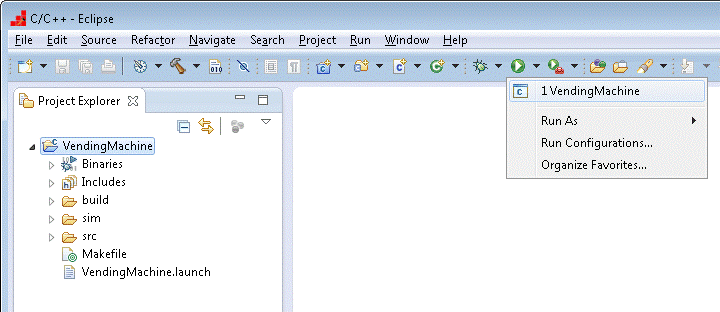
- The simulation starts running as soon as the application is started in the redBlocks Workbench.

- The following output should be displayed in the console view (if the application cannot establish a connection to the redBlocks Simulator, try to deactivate your local firewall temporarily):
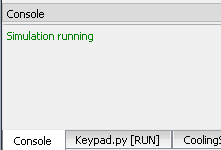
Upon successful connection, the simulation runs within the redBlocks Simulator and the graphical representation of the target can be operated like the real device.
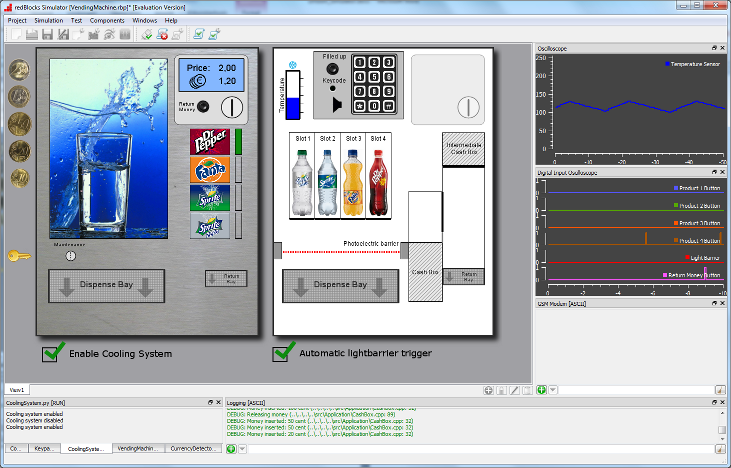
Here are a few example use cases of the VendingMachine example:
- Select a beverage via the product buttons, simulate inserting coins by pressing the coin icons and watch the beverage being released. If the photoelectric barrier is not interrupted after releasing the beverage, the money is returned to the customer. The photoelectric barrier is automatically interrupted by a simulation script, when a product flap opens in order to simulate the bottle falling through, like it would in the real machine. You can change this automatism by toggling the “Automatic lightbarrier trigger” checkbox in order to simulate a product jam within the machine.
While operating the machine, various digital signals can be observed in the oscilloscope on the left side. - Simulate opening the door by hitting the key symbol. In order to deactivate the alarm system of the vending machine, you need to insert an access code via the keypad (which is 1234). If you fail to insert the right code, an alarm SMS is sent via a GSM mode (the AT commands to the modem are displayed in the GSM Modem terminal window).
- The temperature in the cooling chamber of the vending machine is visualized via a bar control and within the oscilloscope on the right. You can either manually change the measured temperature value by dragging the bar or let the simulation script gradually increase the temperature while the cooling actor is switched off and decrease it while the cooling actor is switched on. The script can be activated / deactivated with the checkbox “Enable Cooling System”.
If the temperature increases beyond a critical value, an alarm SMS is sent via the GSM modem (see GSM Modem terminal window). - The logging output can be observed in the Logging terminal window.
As the next tutorial step will demonstrate, the simulation session in the redBlocks Simulator ist automatically paused and resumed during debugging sessions.